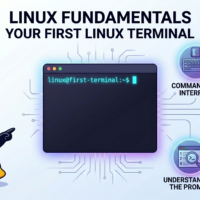

🖥 Your First Linux Terminal
The moment you stop clicking and start communicating directly with the operating system.
🚀 First Launch
You open a Linux terminal.
The screen looks empty.
No icons.
No menus.
No buttons.
Just a blinking cursor.
student@linux:~$
This is where professionals spend a lot of their time.
🤔 What Is A Terminal?
A terminal allows you to communicate directly with Linux using commands.
Instead of clicking:
- You type instructions
- Linux executes them
- Results appear instantly
Think of it as a direct conversation with the operating system.
⌨ Command #1: whoami
Ask Linux who is currently logged in:
whoami
Example output:
pratik
Useful during troubleshooting and administration.
📂 Command #2: pwd
Show your current location:
pwd
Example:
/home/pratik
Think of this as:
“Where am I right now?”
📋 Command #3: ls
List files and folders:
ls
Example:
Documents
Downloads
Pictures
Projects
One of the most frequently used Linux commands.
⚡ Three Commands You Now Know
📂 pwd → Where am I?
📋 ls → What’s here?
Congratulations.
You’re already interacting with Linux.
📅 Command #4: date
Display system time:
date
Example:
Mon May 25 14:22:01 UTC
Time synchronization is important in security investigations and log analysis.
🖥 Command #5: uname
Display system information:
uname -a
Useful for:
- Operating system identification
- Kernel information
- Troubleshooting
Many support teams ask for this information first.
🧹 Command #6: clear
Messy terminal?
clear
Instantly cleans the screen.
Simple, but you’ll use it often.
🎯 5-Minute Practice Lab
Open a Linux terminal and try:
whoami

pwd

ls

date

uname -a

clear
Don’t just read the commands.
Run them.
Linux becomes easier through repetition.
💡 Pro Tip
Use the ↑ Up Arrow key.
Linux remembers previously executed commands.
Professionals constantly reuse command history instead of typing everything again.
🏆 Key Lesson
The terminal is not something to fear.
It is one of the most powerful tools in technology.
Every Linux expert started exactly where you are now:
At a blinking cursor.
📂 Navigating The Linux Filesystem
Learn how Linux organizes files and folders, and master the commands used to move around the system efficiently.



Recent Comments