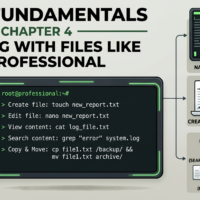

Learn how Linux organizes inform
📂 Navigating The Linux Filesystem
Learn how Linux organizes information and how professionals move through systems efficiently.
🗺 Imagine A Giant City
Every city has:
- Streets
- Buildings
- Addresses
Linux works similarly.
Files live inside directories.
Directories live inside other directories.
Understanding the map is the first step.
🌳 Linux Directory Tree
/

├── home
│   └── user
│
├── etc
│
├── var
│
├── tmp
│
├── usr
│
└── opt
Everything starts from:
/
This is called the Root Directory.
📍 Finding Your Location
Ask Linux:
pwd
Example:
/home/student
Think of this as GPS for Linux.
📋 Looking Around
List contents:
ls
Detailed view:
ls -l
Show hidden files:
ls -la
You’ll use these commands constantly.
🚶 Moving Between Directories
Change directory:
cd Documents
Go back one level:
cd ..
Return home:
cd ~
These are among the most-used commands in Linux.
🏢 Important Linux Locations
| Directory | Purpose |
| /home | User Files |
| /etc | Configuration Files |
| /var | Logs & Application Data |
| /tmp | Temporary Files |
| /usr | Programs & Utilities |
💼 What Administrators Actually Do
System administrators often spend their day:
- Checking logs in /var/log
- Editing configs in /etc
- Managing user files in /home
- Troubleshooting applications
Knowing where things live saves enormous amounts of time.
⚠ Absolute vs Relative Paths
Absolute Path:
/home/student/Documents
Starts from root (/).
Relative Path:
Documents
Starts from your current location.
Understanding this prevents many beginner mistakes.
🎯 10-Minute Navigation Lab
Try these commands:
pwd

ls

cd ~

pwd

cd ..

pwd

ls -la
Watch how your location changes.
This is the fastest way to build confidence.
⚡ Pro Tip: TAB Completion
Instead of typing:
cd Documents
Type:
cd Doc[TAB]
Linux automatically completes many commands and paths.
Professionals use TAB constantly.
🏆 Key Lesson
Before you can manage Linux, secure Linux, or troubleshoot Linux…
You must know how to move around Linux.
Navigation is a foundational skill.
📄 Working With Files Like A Professional
Create, copy, move, rename, view, and delete files using the commands every Linux user relies on daily.


Recent Comments