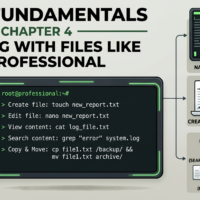

📄 Working With Files Like A Professional
Learn the file management skills used daily by Linux administrators, developers, and security professionals.
🛠 Day One At Work
Your manager asks:
- Create a report file
- Copy it to a backup location
- Rename the old version
- Delete temporary files
Sounds simple.
Yet these tasks happen thousands of times every day across Linux systems.
📄 Creating Files
Create an empty file:
touch notes.txt
Verify it exists:
ls
The touch command is one of the quickest ways to create files.
📁 Creating Directories
Create a new folder:
mkdir Projects
Create multiple folders:
mkdir Reports Backups Logs
Organization is a core Linux skill.
👀 Viewing File Contents
Display file contents:
cat notes.txt
Useful for:
- Configuration files
- Logs
- Scripts
- Reports
✍ Writing Data Into Files
Create content:
echo "Linux Learning Lab" > notes.txt
Check the result:
cat notes.txt
Output:
Linux Learning Lab
📋 Copying Files
Create a backup:
cp notes.txt backup.txt
You now have:
- notes.txt
- backup.txt
Backups save careers.
🚚 Moving & Renaming Files
Rename:
mv notes.txt report.txt
Move file:
mv report.txt Projects/
The same command handles both operations.
🗑 Removing Files
Delete file:
rm backup.txt
⚠ There is no Recycle Bin.
When deleted, recovery may be difficult.
Always double-check before pressing Enter.
🧰 File Management Cheat Sheet
touch file.txt      Create file

mkdir folder        Create folder

cat file.txt        View file

cp file1 file2      Copy

mv old new          Rename

mv file folder/     Move

rm file.txt         Delete
💼 Real Security Team Example
A SOC analyst downloads:
- Log files
- Investigation reports
- Evidence files
Throughout the day they:
- Create directories
- Move evidence
- Copy reports
- Archive results
These simple commands become second nature.
🎯 15-Minute Practice Lab
Run the following:
mkdir LinuxLab

cd LinuxLab

touch notes.txt

echo "Learning Linux" > notes.txt

cat notes.txt

cp notes.txt backup.txt

mv backup.txt archive.txt

ls
You have now completed a real file-management workflow.
⚡ Pro Tip
Use:
history
Linux remembers previously executed commands.
Many professionals reuse command history instead of retyping commands.
🏆 Key Lesson
Linux productivity comes from mastering small commands.
Creating, copying, moving, viewing, and organizing files are fundamental skills you’ll use in:
- Cybersecurity
- Cloud Engineering
- DevOps
- System Administration
- Software Development
👤 Users, Groups & Permissions
Discover one of Linux’s most important security concepts and learn why permissions protect systems from accidental or unauthorized changes.

Recent Comments